Photo to coloring page
How to turn a photo into a coloring page
The steps take a minute. What decides whether the page is fun to color is the photo you start with. So we took one picture, made five worse copies of it, ran all six through the same converter and counted what came out.
The five steps
- Pick a photo with one clear subject. A pet, a person, a toy, a house. The checklist further down says what to look for.
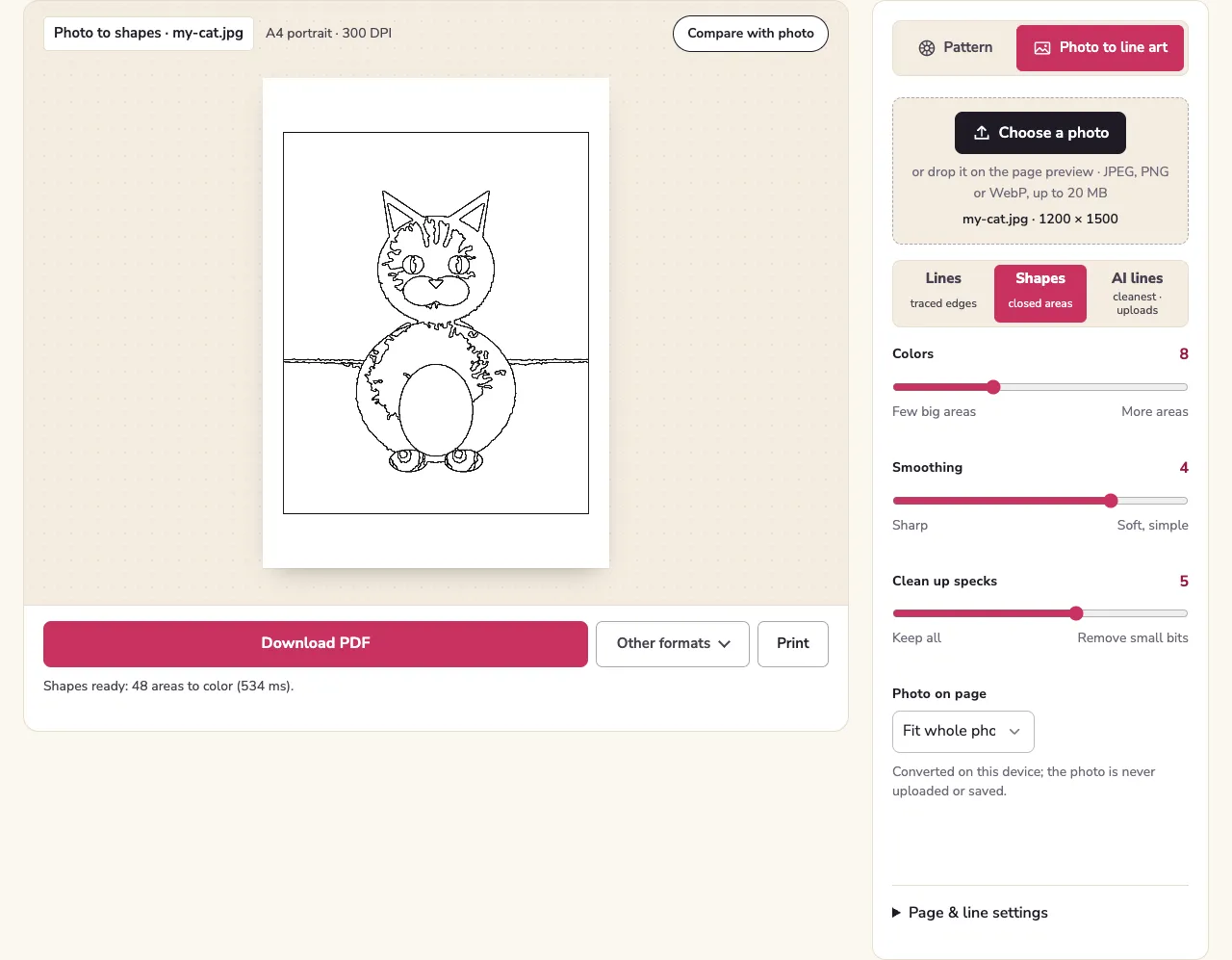
- Open the photo to coloring page tool and choose the photo. With Lines or Shapes it is read on your device and never uploaded.
- Choose a style. Lines traces the edges in the photo. Shapes splits it into closed areas, the way a coloring book is drawn. AI lines sends the photo to an image model to be redrawn, after asking you first.
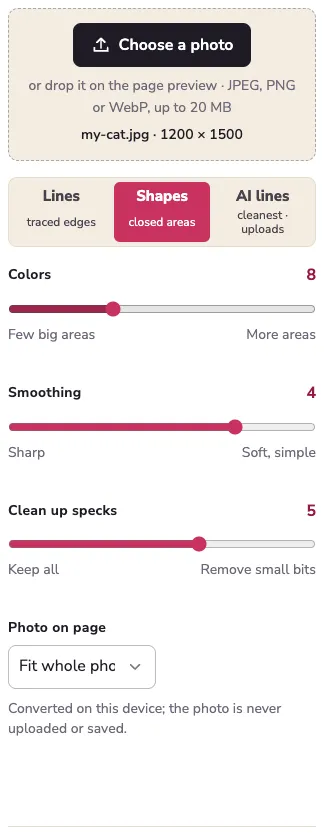
- Adjust two or three sliders. In Shapes, Colors sets how many areas there are and Clean up specks removes tiny ones. In Lines, Detail and Smoothing do the same job for edges.
- Download the PDF and print it at 100%. A4, US Letter or 8 × 10 in, at 300 DPI. The size and paper guide covers printer settings.
The test: one photo, six versions
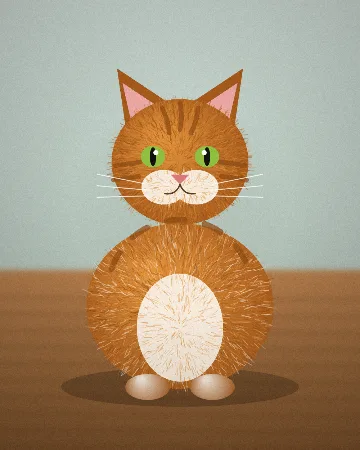
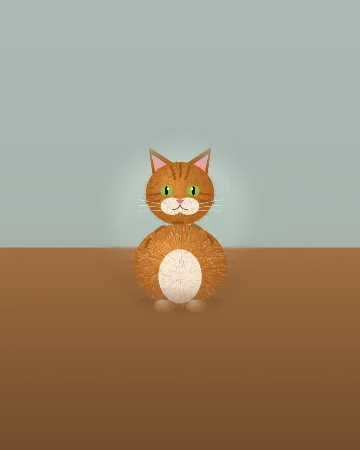
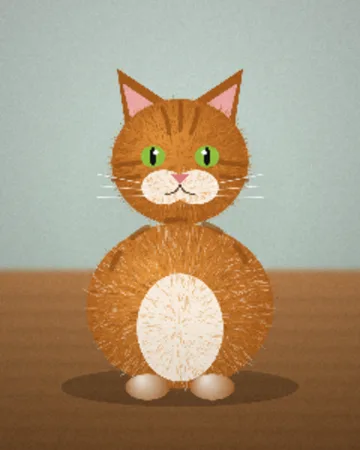
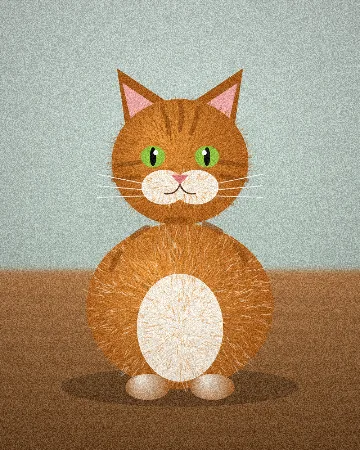
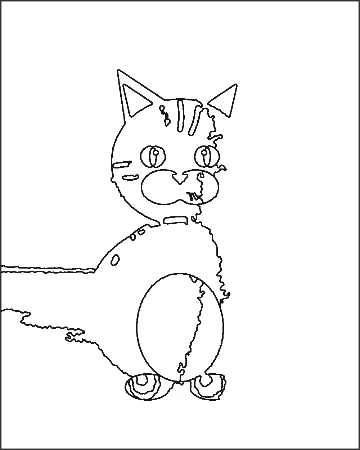
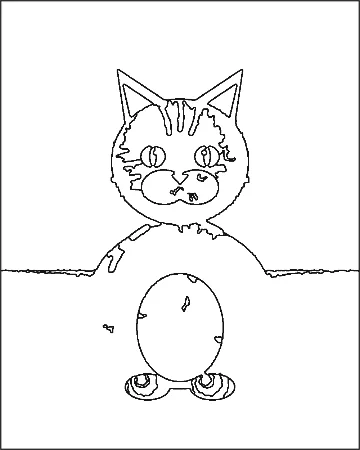
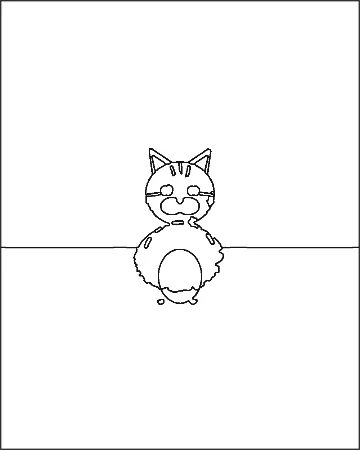
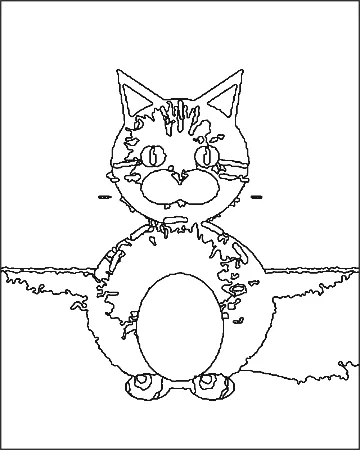
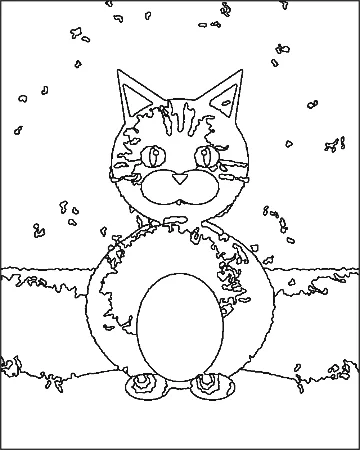
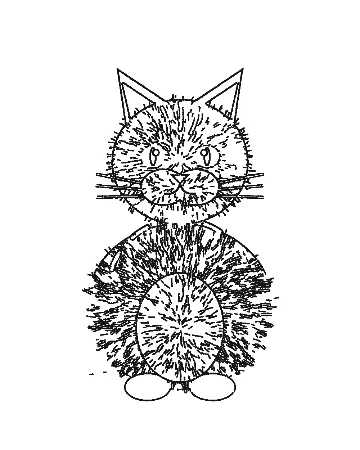
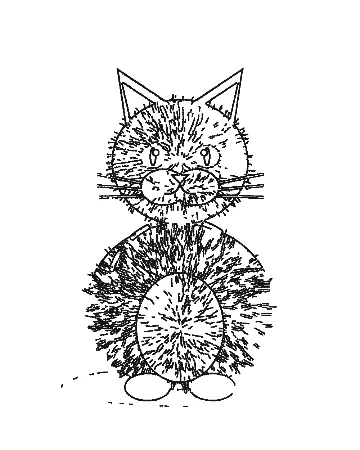
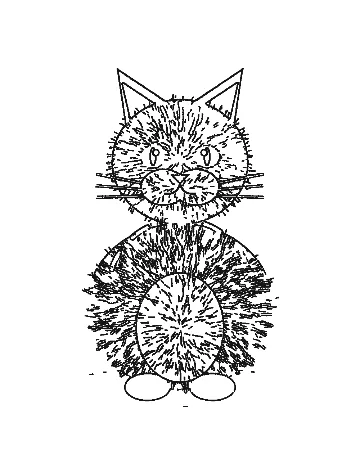
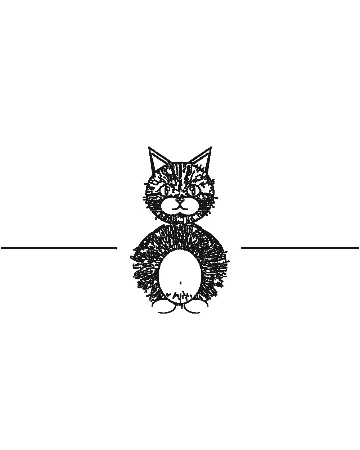
We drew a test photo instead of using a real pet: an orange tabby with whiskers, stripes and fur texture, sitting on a wooden floor in front of a wall. Drawing it means anyone can rerun the test and get the same picture. We then made five copies, each with one problem that real photos often have, and ran all six through huepad’s converter at the default settings (Lines: Detail 50, Smoothing 2, Clean up 3. Shapes: Colors 8, Smoothing 4, Clean up 5).
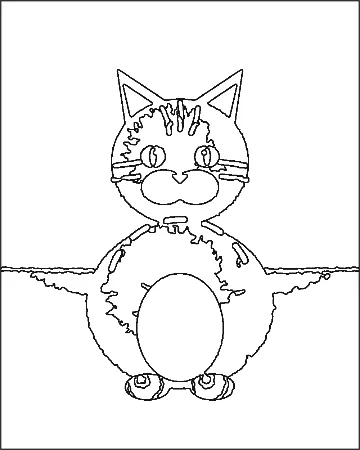
Two numbers describe each result. Areas is how many closed regions the Shapes page has: the spaces a child actually fills in. Ink is the share of the Lines page that prints black. A lot of ink means a lot of short strokes, and less clean white space to color.
| Version | What we changed | Shapes: areas | Lines: ink |
|---|---|---|---|
| Original | The drawn cat as it is: even light, cat fills most of the frame, 1000 × 1250 pixels. | 48 | 11.2% |
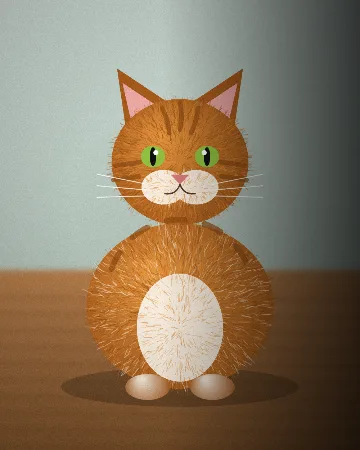
| Side light | A shadow darkening the right half, like a lamp on one side. | 31 (-35%) | 10.9% |
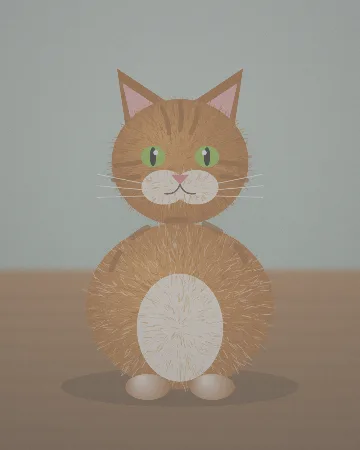
| Low contrast | The whole picture washed towards grey, like a hazy or backlit shot. | 36 (-25%) | 11.2% |
| Subject far away | The same scene from twice as far away: the cat is half as tall. | 24 (-50%) | 4.2% |
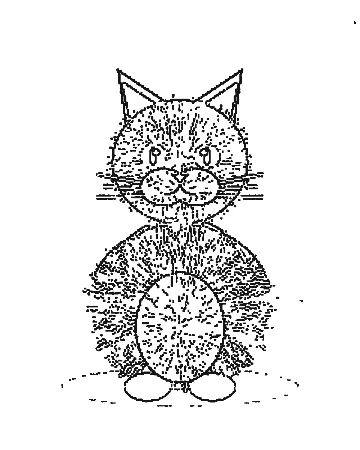
| Low resolution | Shrunk to 240 × 300 pixels and enlarged again, like a thumbnail saved from a chat. | 84 (+75%) | 10% |
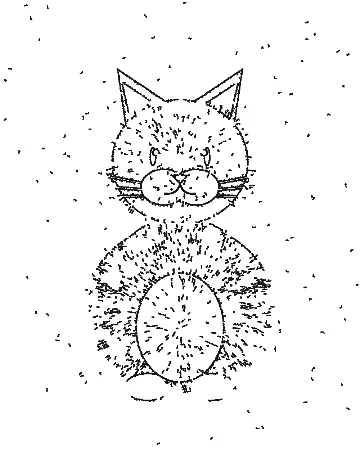
| Grain | Heavy noise, like a phone photo in a dim room. | 105 (+119%) | 5.6% |
What the numbers say
Noise and low resolution add areas nobody wants
Grain more than doubled the Shapes areas, from 48 to 105, and almost all of the new ones are specks scattered over the wall and floor. The low-resolution copy went to 84: the blocky edges of the enlarged thumbnail turn into a fringe of small pieces round the body. Both are fixable after the fact with Clean up specks, but a sharp photo taken in good light starts much closer to a usable page.
Shadows and haze remove areas you do want
Side light did the opposite: 31 areas, 35% fewer. The shadowed half of the cat is close in color to the shadowed floor, so the converter joins them and the outline of the body disappears on that side. Low contrast lost 25% of the areas for the same reason. A missing outline is worse than an extra speck, because there is no slider that puts it back.
Lines barely noticed either problem (10.9% and 11.2% ink against 11.2%). It looks for local changes in brightness, so an even shift across the picture leaves the edges where they were. If your photo is dim or hazy but sharp, Lines is the safer style.
Distance is the problem people miss
With the cat half as tall in the frame, the Shapes page dropped to 24 areas and the eyes merged into the face. On an A4 page the drawing area is about 185 mm wide, so a cat that fills half the frame is drawn less than 10 cm across. Crop before you convert: the subject should fill most of the picture.
A photo checklist that follows from the test
- Fill the frame. Crop so the subject takes up most of the picture. Distance cost half the areas in our test.
- Light it evenly. Daylight from a window behind you, not a lamp to one side. Side light cost a third of the areas.
- Keep it sharp. Use the original file from the camera, not a screenshot or a picture saved from a message. The 240-pixel copy gained 75% extra areas, mostly jagged bits.
- Avoid dim rooms. Phone cameras add grain in low light; grain more than doubled the areas.
- Prefer a plain background. Every edge behind the subject becomes something to color.
Fixing a page that came out wrong
| What you see | Try |
|---|---|
| Hundreds of tiny areas (huepad warns above 450) | Shapes: lower Colors, raise Clean up specks. |
| Fur or hair turned into dense short strokes | Switch from Lines to Shapes, or raise Smoothing. |
| An outline is missing on the shadowed side | Switch to Lines, or retake the photo in even light. |
| Faces or small features vanish | Crop tighter; in Shapes raise Colors by 2 to 4. |
| Nothing works and the photo matters | Try AI lines; the style comparison shows when it helps. |
Is the photo uploaded?
Not with Lines or Shapes. The picture is decoded and converted by JavaScript in your browser; nothing leaves the device. AI lines is different and says so: before the first upload it asks, and it is limited to three pages a day per visitor. The privacy page has the details.
How we measured. The test photo is drawn by tools/synthetic.cjs and the copies and counts are made by tools/guides/measure.cjs, both in the site’s source, run on 2026-10-29 with the same converter code the tool uses. One drawn photo is not a survey of all photos; it shows the direction each problem pushes the result.
Read next
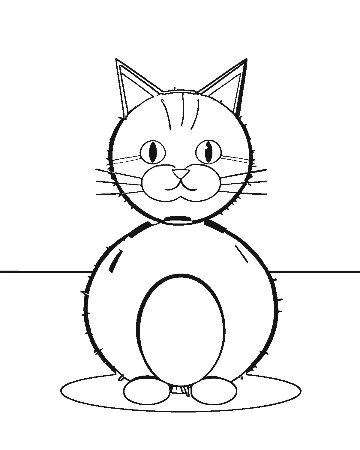 Photo to coloring page convertersLines, Shapes or AI: which converter for which photoThe same three photos converted three ways: traced edges, closed areas and an AI redraw. What each style keeps, what it loses, how long it takes and what it costs you.
 Printing coloring pagesColoring page sizes and paper, worked outWhat size to print coloring pages, what happens when an A4 page meets Letter paper, how line weight changes with size, and which paper weight to use, in lb and gsm.
 Custom coloring booksA custom coloring book from your own photosTurn family or pet photos into a custom coloring book: print at home, order a bound KDP proof copy, or use a printing service. Page counts, binding and real costs.